Point at anything.
Know what it is.
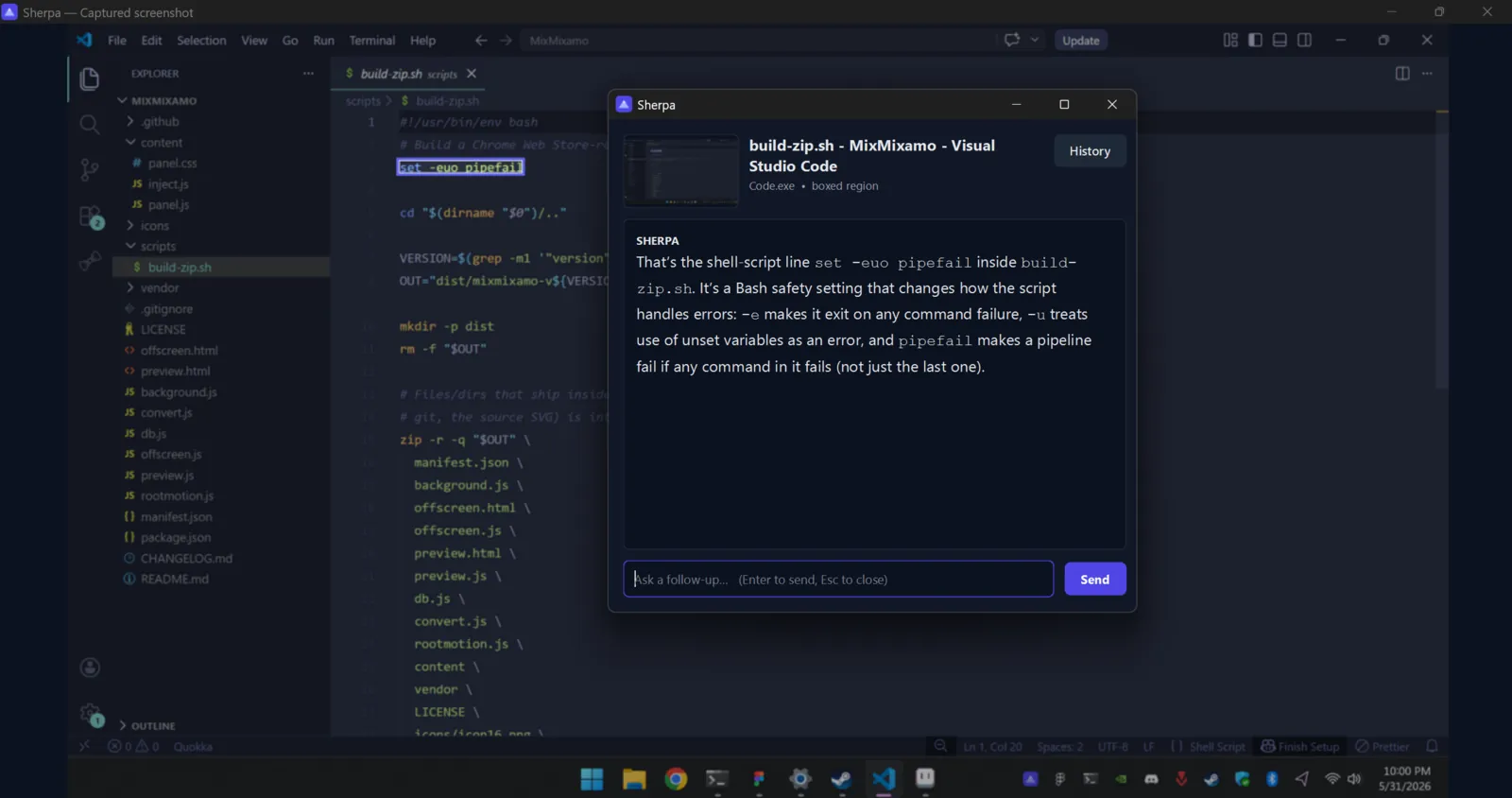
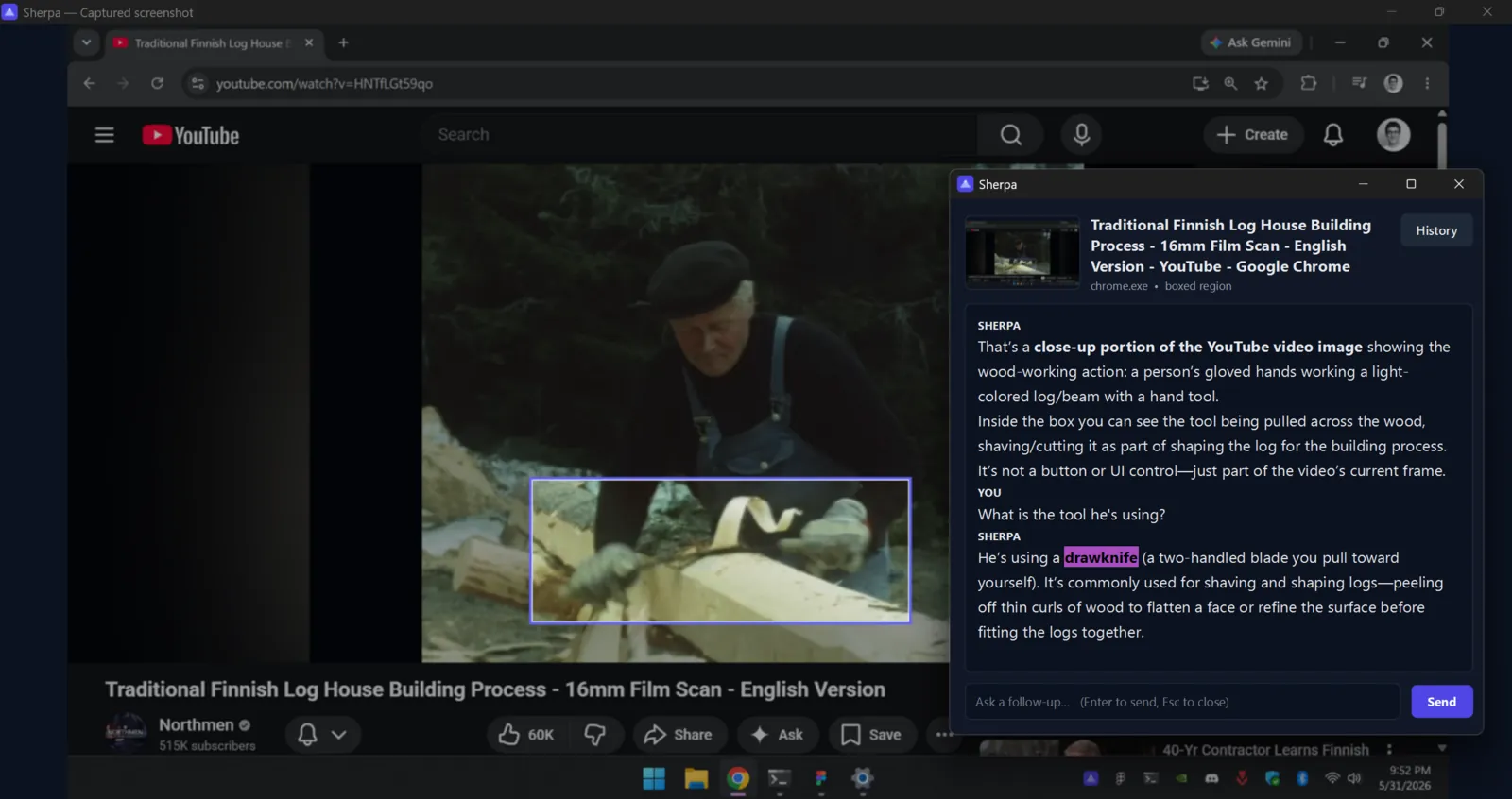
Sherpa lives in your system tray. Hover any button, menu, thumbnail, or chart — in any app or website — press CtrlShiftSpace, then box it or click it, and an AI vision model tells you exactly what it is and what it does.
Free app · runs on your own OpenRouter key · pennies per question, paid to your AI provider
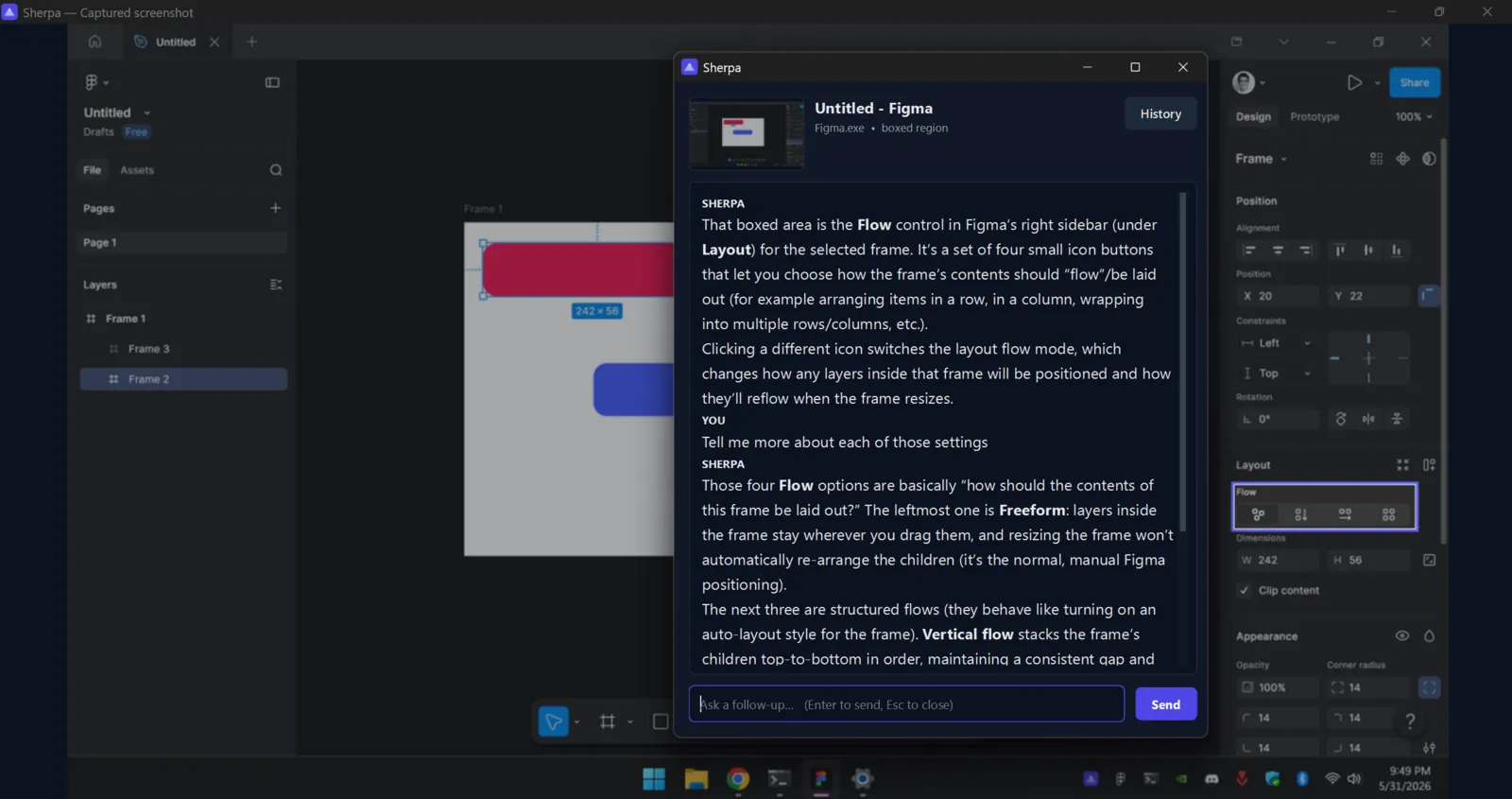
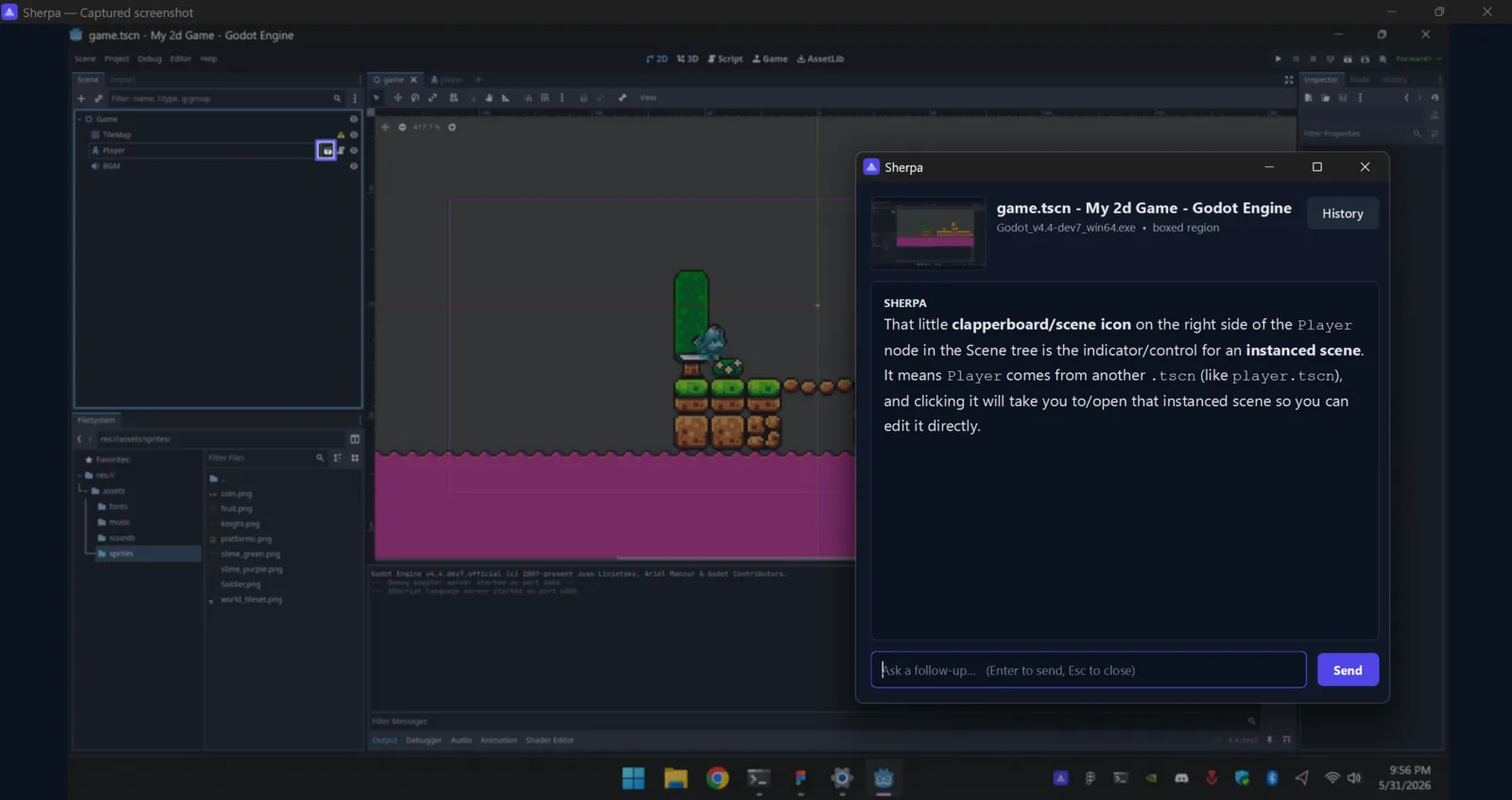
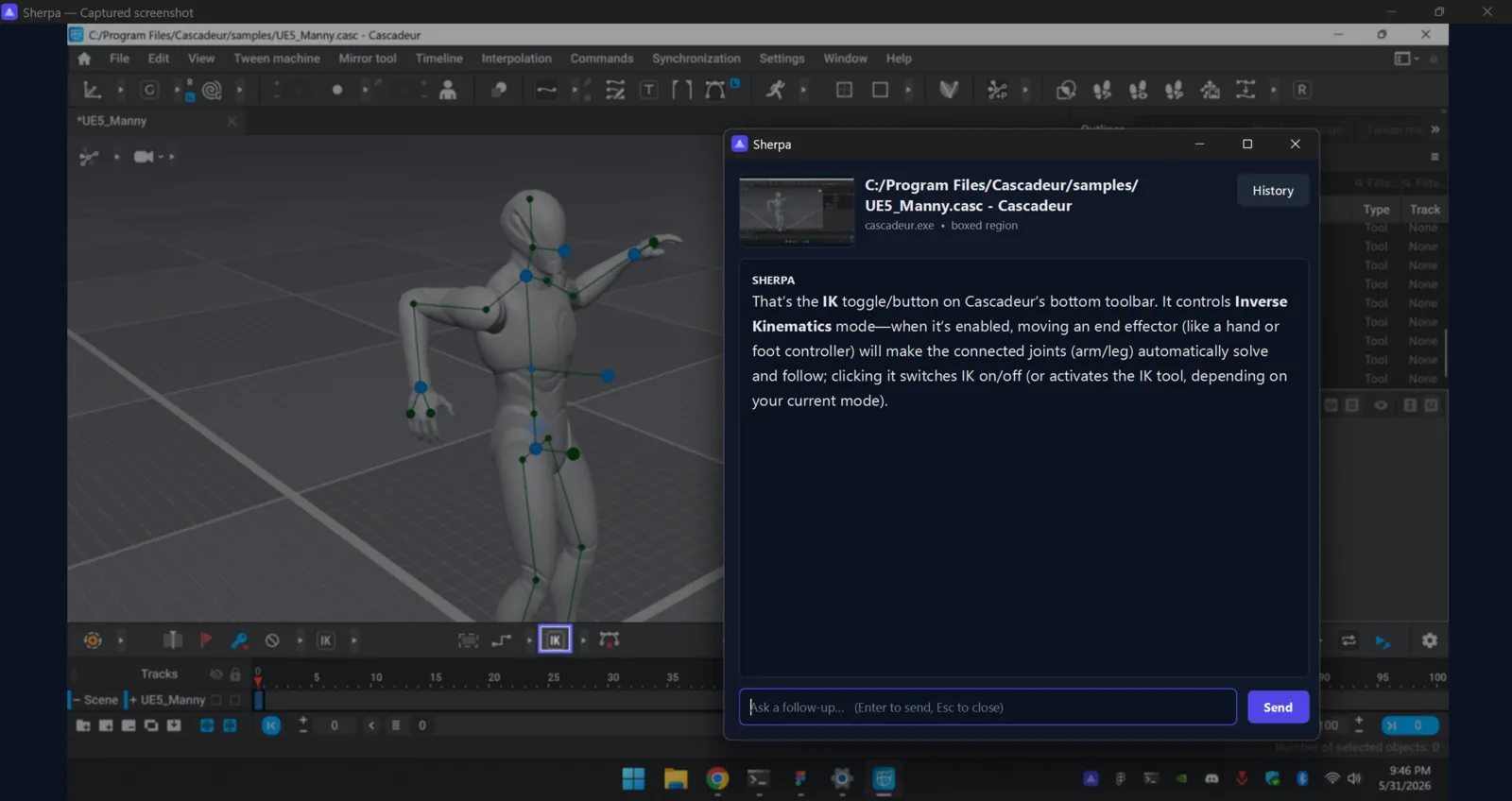
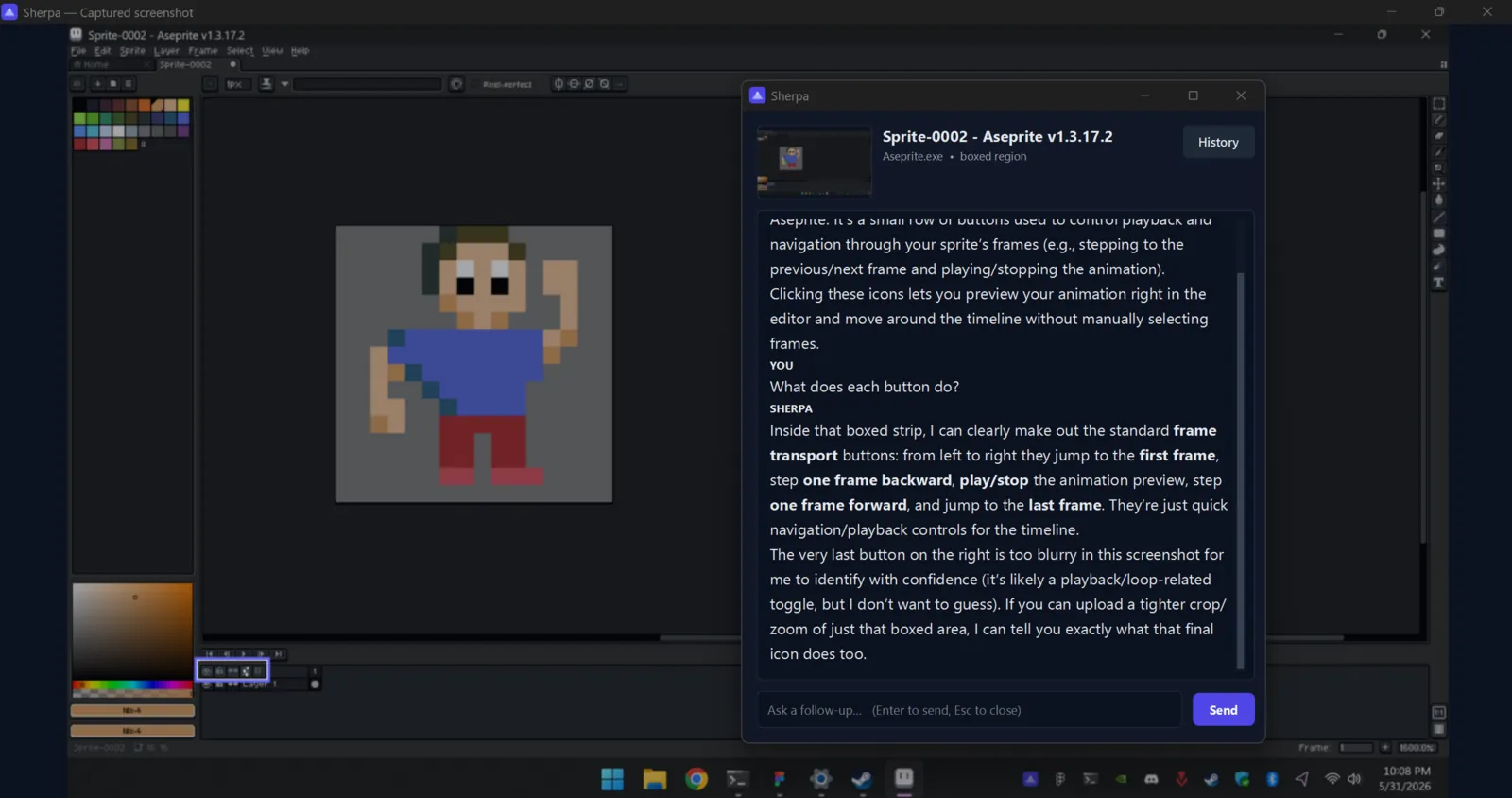
That’s the Flowcontrol in Figma’s right sidebar (under Layout) — four icons that set how a frame’s contents lay out: in a row, a column, or wrapping into a grid. Like turning on Auto Layout for the frame.

One keypress from “what’s this?” to knowing.
Trigger a capture
Press Ctrl+Shift+Space anywhere — or pick “Capture now” from the tray menu. The shortcut is rebindable to anything in Settings.
Box it, or click a point
Sherpa freezes the screen. Drag a box around exactly what you want explained, or single-click one spot — so the AI answers about that, not the flashiest thing nearby. (Esc or right-click cancels.)
Get a plain-English answer
A floating chat tells you what it is and what it does — then stays open so you can ask follow-up questions.
A pocket guide for software you’ve never seen.
Works on anything
Native apps, web apps, settings panels, games. If it’s on your screen, Sherpa can read it — controls and content alike.
Pinpoint, don’t guess
Drag a box around exactly what you mean, or single-click one spot. Sherpa marks that — so you get an answer about it, not the nearest big button.
Any model you want
Pick from every vision model on OpenRouter, ranked by GUI-grounding score right in Settings. Ships defaulting to GPT-5.2.
Pennies, not subscriptions
Bring your own OpenRouter key. A question runs about a cent or two — paid straight to the model maker, never a subscription.
Out of the way
Lives in your tray with a global hotkey and a floating, always-on-top chat. Left-click the tray to reopen your last answer.
Make it yours
Settings let you rebind the hotkey, pick any model, choose how many past chats to keep, position or hide the on-screen hint, and tune the chat font, size, and line spacing.
No middleman
No Sherpa account, no Sherpa server. Your screenshot goes straight from your PC to the model you chose.
No accounts. No servers. No catch.
Sherpa runs entirely on your machine. Captures go directly to the AI model you pick, authenticated with your own key. We never see them — there’s nothing of ours in the middle to see them with.
Good things to know.
What does it cost?+
The app itself is free. You bring an OpenRouter API key and pay the model provider directly — usually a cent or two per question on the default (GPT-5.2), or a fraction of that if you switch to a faster, cheaper model. You can watch every cent on your OpenRouter dashboard.
Where do my screenshots go?+
Straight from your computer to whichever model you select, over your own OpenRouter key. There is no Sherpa backend sitting in the middle, so there’s nowhere for us to store or see your captures.
Which AI models can I use?+
Any vision-capable model on OpenRouter — GPT-5.2, Gemini 3, Claude, Qwen3-VL and more. Settings ranks them by their ScreenSpot-Pro grounding score, so you can trade speed for accuracy at a glance.
Which operating systems are supported?+
Windows 10 and 11 today. Sherpa hooks directly into Windows’ windowing APIs to grab the right window and your exact cursor position.
How do I trigger a capture?+
Press Ctrl+Shift+Space (rebindable in Settings) or choose “Capture now” from the tray menu. Then drag a box around what you want explained, or single-click one point — Esc or right-click cancels. Left-click the tray icon to reopen your last chat.
Stop Googling “what does this button do.”
Install Sherpa, add your OpenRouter key, and press Ctrl+Shift+Space. That’s the whole setup.